
Supabase Auth settings to check before you launch your AI-built app
Redirect URLs, email confirmation, SMTP, passwords, CAPTCHA: the Supabase Auth settings AI tools leave on their defaults, and what to set before launch.
4 min read
When Lovable, Bolt or another AI tool adds login to your app, it writes the screens and the code. The settings that decide how safe that login is live somewhere else: in your Supabase project, under Authentication, and most of them are still on the values the project was created with.
Those defaults are made for getting started, not for real users. This article goes through the settings worth changing before launch, in the order we check them. None of them requires code, and most take a minute.
1. Site URL and redirect URLs
After a sign-up confirmation, a magic link or a password reset, Supabase sends the user back to your app. Site URL is the default destination; Redirect URLs is the list of other addresses allowed.
- Set Site URL to your production address,
https://yourapp.com, nothttp://localhost:3000. Confirmation and reset emails use it. - In Redirect URLs, list exact production addresses. Wildcards are fine for local development and previews, but keep them narrow.
2. Email confirmation
With Confirm email turned off, anyone can sign up with someone else’s address and use the account right away. Turn it on in the email provider settings unless you have a specific reason not to, and make sure the app handles the “check your inbox” step.
3. Your own email sender (SMTP)
Supabase’s built-in email sender is for testing. It sends only to members of your organisation, and the default limit for auth emails is 2 per hour, so on launch day your second new user doesn’t get their confirmation email.
Set up custom SMTP with a sending service (Resend, Postmark, Amazon SES, Brevo and others) on your own domain. Then the confirmation email comes from no-reply@yourapp.com, and you can raise the email limits. For these emails to reach the inbox instead of spam, the domain needs SPF, DKIM and DMARC, the same records we described for contact form emails.
4. Password rules
In the password settings:
- Minimum length: Supabase advises against anything under 8 characters. We use 10 or more.
- Required characters: requiring letters and digits blocks the weakest passwords without much friction.
- Leaked password protection: rejects passwords that appear in known data breaches (checked against HaveIBeenPwned). It is available on the Pro plan and above; if you are on Pro, turn it on.
5. Link and code expiry
Magic links and one-time codes are as good as a password while they are valid. Supabase recommends an expiry of one hour (3600 seconds) or less. If your users sign in with codes, shorter is better.
6. CAPTCHA on sign-up, sign-in and password reset
Bots that find your sign-up form create fake accounts, use your email quota and try leaked passwords on the sign-in form. Supabase Auth supports CAPTCHA with Cloudflare Turnstile or hCaptcha on sign-up, sign-in and password reset: you turn it on in the dashboard (under bot and abuse protection), add the widget to your forms, and pass the token with the call:
await supabase.auth.signUp({
  email,
  password,
  options: { captchaToken } // from the Turnstile or hCaptcha widget
});
Turnstile is usually invisible to real visitors. Once CAPTCHA is on, every sign-up, sign-in and reset call needs a token, so update all the forms before you enable it.
7. Sign-up and providers you don’t use
- If the app is for a closed group (a team, invited clients), turn off Allow new users to sign up and invite people instead.
- Turn off providers you don’t use. An enabled provider is one more door.
- Anonymous sign-ins deserve a check of their own. Anonymous users get the
authenticatedrole, so a policy written as “any signed-in user can read” also lets in someone who only clicked “continue as guest”. If you use anonymous sign-ins, check theis_anonymousclaim in the policies that matter; if you don’t, keep them off.
8. Email and password changes
Changing the email address or the password is how a stolen session becomes a stolen account. Keep secure email change on (the change is confirmed on both the old and the new address), and if your plan and settings allow it, require recent sign-in before a password change.
9. Rate limits
Supabase applies rate limits to sign-ups, sign-ins, code requests and token refreshes. Open Rate Limits in the Auth settings and read them once: after custom SMTP, raise the email limit to what launch day needs, and leave the rest unless you have a reason.
10. MFA, at least for admins
If your app has an admin area or handles money or health data, offer multi-factor authentication, and require it for administrators. Policies can then demand it for sensitive tables: the user’s token says whether they signed in with a second factor (aal2).
What these settings don’t do
Auth settings decide who can sign in. They don’t decide what a signed-in user can read and change; that is the job of Row Level Security in the database. If you haven’t checked it yet, start with the 10-minute RLS check, and go through the pre-launch security checklist for the rest of the app.
Our free Security Check looks at your live app from the outside, read-only, including the authentication setup and the database rules, and sends you the most serious issues in writing.
SupabaseAuthenticationAI-built appsLovable
Keep reading
All articles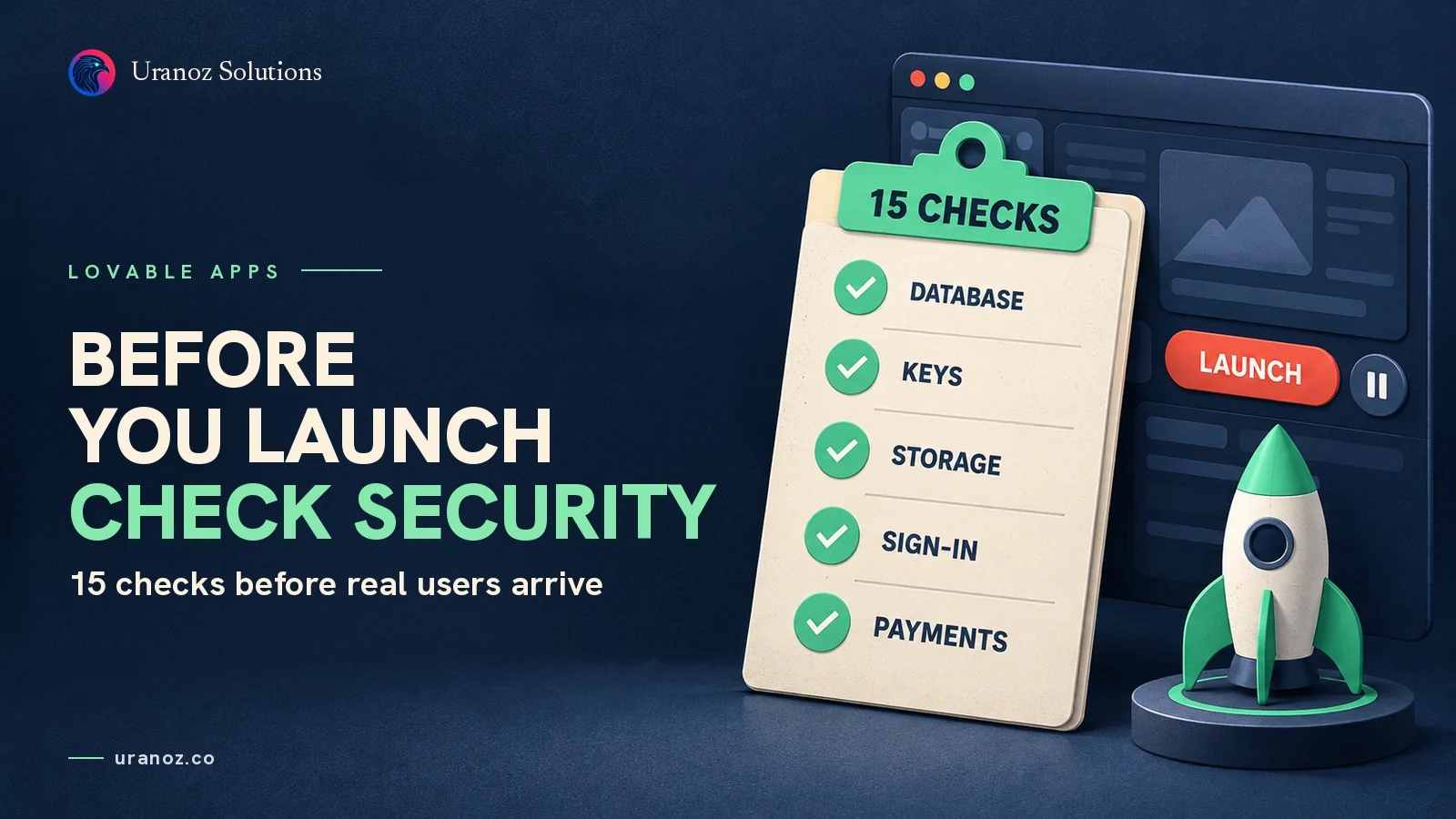
App security
Before you launch a Lovable app: a pre-launch security checklist
Fifteen checks to run before real users and real data arrive: database rules, keys, storage, sign-in, payments, functions and backups. Most take minutes.
4 min read
App security
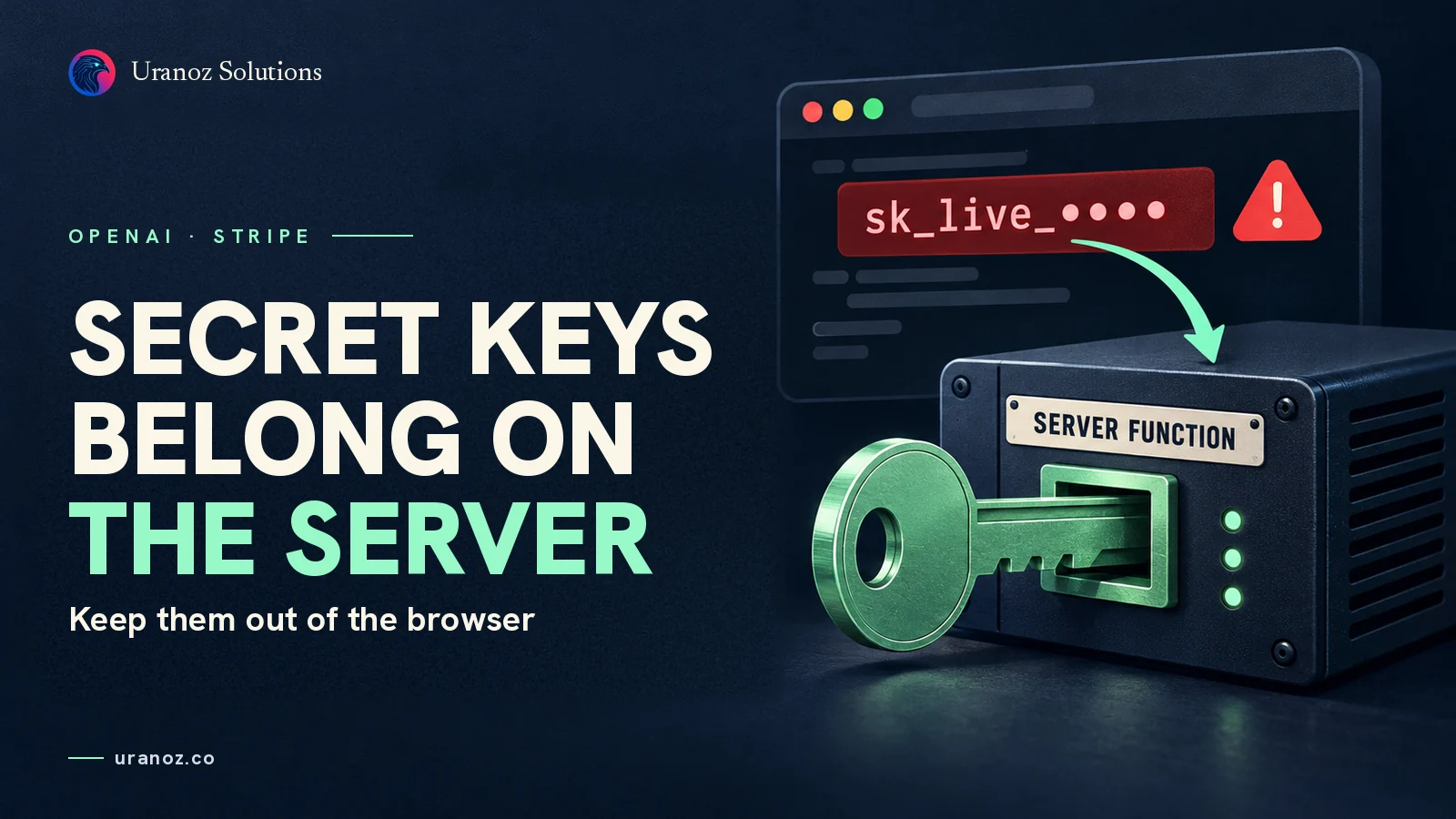
OpenAI or Stripe keys in your AI-built app? Move them to a server function
Anyone can copy a key from your frontend. Which keys are safe in the browser, how to find the ones that are not, and how to move them to a Supabase Edge Function.
4 min read

App security
Public Supabase Storage buckets: are your users' files exposed?
Avatars can be public. ID scans, invoices and contracts cannot. How to check your Supabase Storage buckets and rules, and fix them without breaking uploads.
4 min read